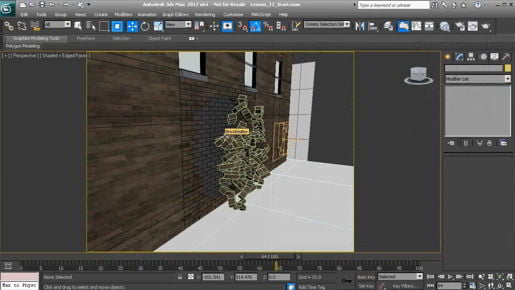
3ds max Configuring viewport layouts And we have solid backgrounds in these others. If you want to see solid backgrounds or gradients, you can do that from the menus up here, it's one way to do it. Go to Views, Viewport Background and then choose in this case Solid Color and that's for the current viewport. I'll go back to my Select Object Tool and I can select something and maybe zoom in with the keyboard shortcut I made earlier, Control + Shift + Z and now I can just work on just that one object. If I want to go back to my other layout, I can just click on the quad four button here and I'm taken back to that layout. Or I can click on my one large and three small, and I'm taken back to that layout. That was quick and easy. That's how to use the viewport layout tab's toolbar.
