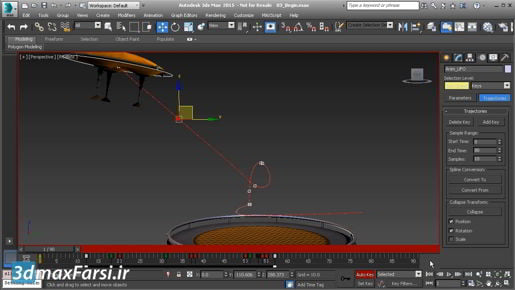
3ds max Spline Modeling Editing control vertex types so I'm moving the entire curve. I can deselect all of the points and just select that one. So those are Bezier control verticies. There's a variant of that that has broken tangent handles that can be adjusted independently. When we move these tangent handles around they move together. But I can right-click once again and choose Bezier Corner, and now we can move each one independently with broken tangent handles. To reconnect them, I can right-click once again, and choose Bezier, and notice that they both snapped to being tangent to that line. So now, they're connected once again. And those are the four different vertex types, Smooth, Corner, Bezier, and Bezier Corner. I'm going to leave these all at the type of Bezier. And then I can exit out of Sub-Object Vertex Mode. That's how to convert a freehand spline. And also, how to convert various vertex types on an editable spline or line object.
