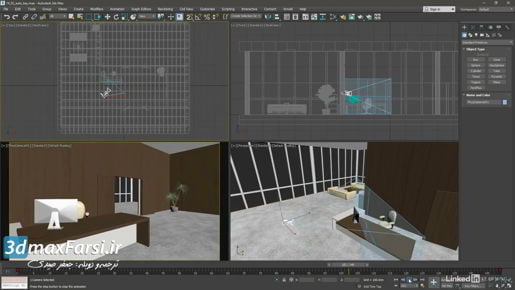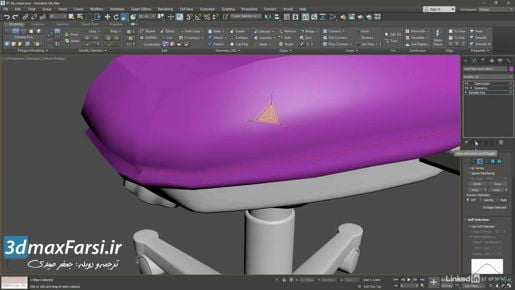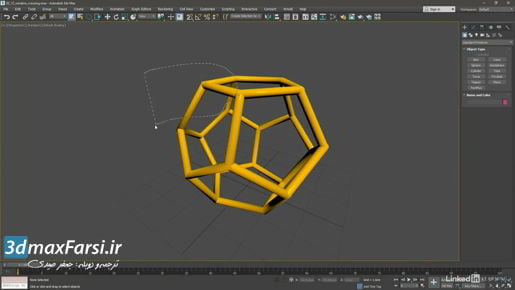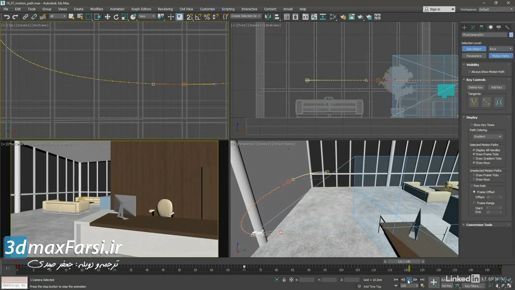
Friday, December 27, 2019

3ds Max Animation Navigating the updated Curve Editor

3ds Max 2020 Animation Navigating Curve Editor

3ds Max Animation Navigating the updated Curve Editor If we select some keys, you'll see the length of those tangents there. And you can click this button to make the tangents larger. Just keep clicking it repeatedly and you will make those tangents larger and larger. Likewise, there's a button to make them smaller. The bulk of the new tools are on this tool bar here which is called the Keys Only Tools tool bar. We'll look at that in another movie but there are a bunch of miscellaneous key manipulation tools here. There are a few other tool bars available that are hidden by default. Let's look at how to reveal them. Right-click on the textured bar on the left of any one of the tool bars. Hold down the right mouse button and choose show toolbars. And these include all of the old ones that used to exist as well as some new ones. For example, we can choose the curves tool bar and that's got some useful buttons on here. For example, view all tangents. And when that's on, you don't have to select anything in order to see the tangents. Go back to my move keys tool now that I'm done scaling here. Or likewise, as we saw in the dope sheet, we have the ability to display key-able icons whether a track is key-able or not. And that's found on the curves tool bar as well. But the commands on the curves tool bar are also available from the menus. For example, we can go up to the view menu and enable keyable icons. Or once again, disable it.


3ds Max Modeling Navigating updated Track Views

3ds Max Modeling Navigating updated Track Views

3ds Max Modeling Navigating updated Track Views I can select it and then right-click in the view and choose to hide the selection. And now it's hidden, and when we enable the appropriate filter here, it's also hidden from the Dope Sheet. Let's unhide that box and then we'll see its track appear again. Right-click in the view and choose Unhide All, and now our box has returned, and its track has returned. So that's all it is, Visible Objects Toggle. If an object is hidden, you won't be able to see its track in the Dope Sheet. Down here, we've got a few navigation controls. Namely, we have the ability to frame the horizontal extents for the selected keys. We can just drag anywhere to make a selection of keyframes here, and then enable this switch, Frame Horizontal Extents Selected Keys, and the view expands out to enclose just the selected keys, but only in the horizontal dimension.

3ds Max Modeling Creating type with TextPlus

3ds Max Modeling Creating type with TextPlus

3ds Max Modeling Creating type with TextPlus If we click that button and the display showed only small dots in the center of each character, then that would mean that none of the characters were selected. The display I'm seeing now with a large orange rectangle around all of the type indicates that all of the characters are selected. We have limited capabilities in this mode. We can change the kerning per character. For example, I could get close in on that E and then click to change the spacing between it and the character before it. We can, for example, change the baseline and it will affect all characters because they're all selected. We could change the scaling, and again, that will affect all characters, but to get the full power of this we'll want to select per character. Let me undo that with Control + Z. To select a single character, hold down the Shift key and click on that character, and now we have the ability to scale just that character. We've got a corner here to scale uniformly and notice how the rest of the type is maintaining the spacing based upon the bounding box. Bring that down. Maybe look at this in the front viewport, Alt + W. Go over there and scale this up to a certain size. Maybe go to the next door neighbor, the E, and kern that a little bit tighter now. Use the middle mouse button.

3ds Max Modeling Modeling updated Bevel Profile

3ds Max Modeling Modeling updated Bevel Profile


3ds Max Modeling Modeling updated Bevel Profile Okay. I experimented with that for a minute and decided on a Bevel Depth of two centimeters and an outline offset of .4. But you may need different values depending upon the shape of your curve. Let's take a look at this now. I'll press F4 to turn off my edged faces. And there, we've got our interesting Beveled Edge. You might run into a few issues here and there with complex geometry. And we can see here, we're getting a little bit of a glitch there on the end. And that's just sort of part and parcel of this process Certain shapes are not gonna lend themselves that well to the Bevel Process. In this situation, if I really needed to clean that up, I would have to resort to using the Editable Poly Tools to do that. Alright. That is a basic introduction to the new and improved Bevel Profile Modifier.

3ds Max Modeling Managing operands Boolean Explorer

3ds Max Modeling Managing operands Boolean Explorer

3ds Max Modeling Managing operands Boolean Explorer That's an easy way to get to the parameters of the operands. If you wanna get to the parameters for the first operand, the one that you used when you first created the Boolean, then you can select that object and do it the old-school way, which is going to be through the Modify panel here. You can see that whatever object you have selected in the Boolean parameters will have its stack displayed. Then I can go into the Cylinder here. And I do get topology warning, but I'm not going to change anything here that would affect the Boolean results, so I can just say Yes. And in those Cylinder parameters, get in a bit closer here, we can see there's some overlapping geometry there. Just going to increase the height a little bit. All right, so that's how we harness the full power of the new Boolean, and also the Boolean Explorer.

3ds Max Modeling Creating compound objects with new Booleans

3ds Max 2020 Modeling compound objects Booleans

3ds Max Modeling Creating compound objects with new Booleans I can double-click to select one of these guys and then move it and you'll see where it overlaps with its neighbor we get an intersection. Alright, cool. So I'm gonna undo that movement, just restore it back to where it was. If we wanted to find the intersection of all of those objects, so that wherever they overlapped with the main disc we would have smaller discs, then that would be a good case for creating a sub-Boolean. Let's look at that. To make a sub-Boolean you go over to the modify panel and select one of the objects that you want to be a member of this sub-Boolean. And that's basically like parentheses in an algebraic equation. You're saying we wanna isolate this operation and perform it before we do any other operations. So I've got one of these cutter cylinders selected and then right-click and choose create new Boolean. Now I've got a sub-Boolean and I can drag these other ones one at a time into that.

3ds Max New Features Saving animation with Game Exporter

3ds Max 2020 Saving animation Game Exporter


3ds Max New Features Saving animation with Game Exporter Then we can close the scene explorer. Then go into the application menu, and choose export, game exporter. In the game exporter dialogue, go to the animation clips tab. Once again, we have the ability to create and manage presets with these icons here. The anim default preset is gonna be just fine for us. From the export all pulldown, we wanna choose export selection so we only save out the joints that we have animated. 

3ds Max New Features Sending to Print Studio

3ds Max 2020 Sending to Print Studio

3ds Max New Features Sending to Print Studio From here, we can go ahead and run through the steps of printing our object. Check it for errors. No problems. See if it needs any supports. We can add automatic supports before printing. It's gonna calculate this shape and determine whether or not it needs supports. Looks like our model is pretty straightforward and doesn't require supports. 

3ds Max New Features Visualizing CFD as a gradient

3ds Max 2020 Visualizing CFD as a gradient

3ds Max New Features Visualizing CFD as a gradient We've got our slice object ready. Select that plane and go into the Create menu. Under AEC Objects, down near the bottom we have Max Creation Graph tools, CFD Visualization and let's go for MCG Visualize CFD Velocity. That's the speed of the fluid. Click on that and then we need to select the data object with that Scene Explorer still open and go over here and click on CFDImportData001. 

3ds Max Visualizing computational fluid dynamics

3ds Max 2020 computational fluid dynamics

3ds Max Visualizing computational fluid dynamics , choose CFD, click CFD Import Data and click anywhere in the Viewport and then right-click to complete that. Currently I'm not seeing any data displayed. We can make sure that the object is there and selected using the scene explorer, open that up. CFD Import Data does exist and we selected it, go to the Modify panel and click the button labelled CSV_File and this is the actual simulation data. And we're taken to that program files directory, be aware that we're making a link to an external document therefore it's a better idea to link to the version in my exercise files or current project. I've got that on the desktop. Scene Assets, CFD, office.csv, open that up. Even after linking to that external file I still can't see anything but I can create an object which will draw arrows to indicate the flow of the fluid. Go back to the Create panel and from the categories choose Max Creation Graph.

3ds Max Importing and replacing from the Asset Library

3ds Max Importing and replacing from the Asset Library

3ds Max Importing and replacing from the Asset Library but we can always of course select it, it's a group, and then use the move tool, position it in the scene, maybe put it in the origin here. Okay, that's cool. We can also replace that object. To do that, we want to have it selected first. And that's a group. And this is a little bit of a special case here, because when we click on a group in the viewport, it selects the group node and all of the members of the group. And if we did a replace with the Asset Library, then every object in here would be replaced with the incoming group, and we'd have a whole mess here. So we want to select only the group node in this case. A little bit tricky. Now, go up to the Scene Explorer. Turn that on, and just only select the Bookcase Group.

3ds Max New Features Using Asset Library filters

3ds Max 2020 Features Using Asset Library filters

3ds Max New Features Using Asset Library filters .let's enable one of the filters. I'll turn on the tools filter. And nothing happened immediately. And that's because these files all had the word zip somewhere in their file name. This tool is not just searching for the extension. It's searching for the entire file name. If I then right click on that wrench and disable zip, now you would expect that it would hide all of the zip files because our filters are on and zip is not an allowed file type currently. Well, we do see these max files. And that's because we have another set of filters over here that is also in effect. And if a file has a string within it that matches any of these filters, then it will be displayed if it's enabled for that filter, or if the filters are completely turned off. Alright, so this one, the 3d, is turned off right now. But, again, if we right click we can see all the available file types.

3ds Max New Features Saving a model with Game Exporter

3ds Max 2020 : Saving a model with Game Exporter

3ds Max New Features Saving a model with Game Exporter I don't need to in this case so I'm going to disable that. Close the dialogue. We do need to set an export directory. Click on the browse button and now you need to navigate to where you want to save to. I want to save into my current projects export folder and that just happens to be where I am now. Unfortunately, there is no way for me to know where I am currently. There is no actual display path on the screen here, but you can navigate up and down through the tree to figure out where you're at.

3ds Max New Features Accessing the Creative Market

3ds Max New Features Accessing the Creative Market

3ds Max New Features Accessing the Creative Market Select that file and click open and click OK in the PBX import dialogue. And the object is loaded, we're not seeing the texture here, we'll need to go into material editor for that I'll use the keyboard shortcut "M". Here is the material, I'll drag over into the view, choose instance, double click it to load it here, and then up here at the tool bar, click show shaded material in viewport. And now we should see our texture and there it is. Okay, our FBX came in okay. I'd like to point out one last thing though, which is that the material here, the bitmap, was re-pathed. So when we opened up this FBX inside of 3DX Max, it unpacked the textures from the FBX file and saved them out.

3ds Max Defining per-view settings and preferences

3ds Max 2020 Defining per-view settings preferences

3ds Max Defining per-view settings and preferences They would not share the same settings, they would just now start off with all having the same settings. But I'm gonna choose to not apply to all views, and only apply to the current perspective view port. Click okay, and now up here it says user defined, and I can switch between high quality and user defined. The settings of other view port panels will be independent of this one. So I could, for example, load the same camera into multiple views. And visualize my scene in different ways in each view port. That's a basic rundown of the per view ports settings and preferences.

3ds Max Choosing shading modes in viewports

3ds Max Choosing shading modes in viewports

3ds Max Choosing shading modes in viewports Go up to the third menu, now labeled "High Quality", and in the Materials section, we could choose Shaded Materials with Maps. And now we see there is a texture on the ground plane here. Our mode has switched over to a user-defined preset. And because of that little quirk, we're not seeing the full quality of this texture. We can just go back into that menu and re-assume High Quality mode. Now we're getting better rendering of the procedural texture I've got on the ground plane. That's a quick overview of the new menu structure for each viewport panel.

3ds Max 2020 Scaling the interface

3ds Max 2020 Scaling the interface

3ds Max 2020 Scaling the interface To get more control, you can access the advanced display settings. Within this page, scroll down once again. Click "Advanced sizing of text and other items". Inside this display page, click on "set a custom scaling level". And here you can choose an option. Once again you'll need to click OK and then apply the changes. Sign out of Windows and sign back in again to see your changes. That's how we can scale the Windows interface for an ultra-high-definition monitor screen.

3ds Max Appreciating the new UI

3ds Max 2020 Appreciating the new UI 

3ds Max Appreciating the new UI I don't really need this view port layout tab. I'll right-click on an empty spot of the main toolbar. And then from that pop-up menu choose to disable the view port layout tabs. I don't really use the view cube. I'd like to disable that.

3ds max 2020 Beginner tutorials

3ds max 2020 tutorials for beginners to Advanced

3ds max 2020 Beginner tutorials to If you see one labeled finished example that's just what it means. It's an example that I created to show you what the tutorial should look like when it's done. If there isn't a finished example, then the next movie in the sequence is the end state. So in other words, the end state for 0308 layer is the begin state for 0309 desk. Okay, so that's how the sequencing works here. And additionally, there's another folder inside scenes. And these are Xrefs, or external references, and these are here to save disk space.

3ds Max Materials and Mapping Editing UVs with Unwrap UVW brushes

3ds Max Materials Editing UVs : Unwrap UVW brushes

3ds Max Materials and Mapping Editing UVs with Unwrap UVW brushes Click on UV Paint Movement. And move the cursor in the view. And you will see that you've got two circles surrounding that cursor. Those are two radii. The Strength radius and the Falloff radius. It's easiest just to control those from the keyboard shortcuts. Hold down Ctrl and drag up and down to increase the Falloff. Hold down Shift and drag to increase and decrease the Strength. Strength is not really strength